

CycleSic Settings open as a circular hub. Use it to control what you see and how you interact with the chart. On smartphones, the same tasks move to a compact bar and guided gestures.
Transparency — This page describes the Emiciclo interface verified on 2026-08-28. Available options can change with screen, session and updates.
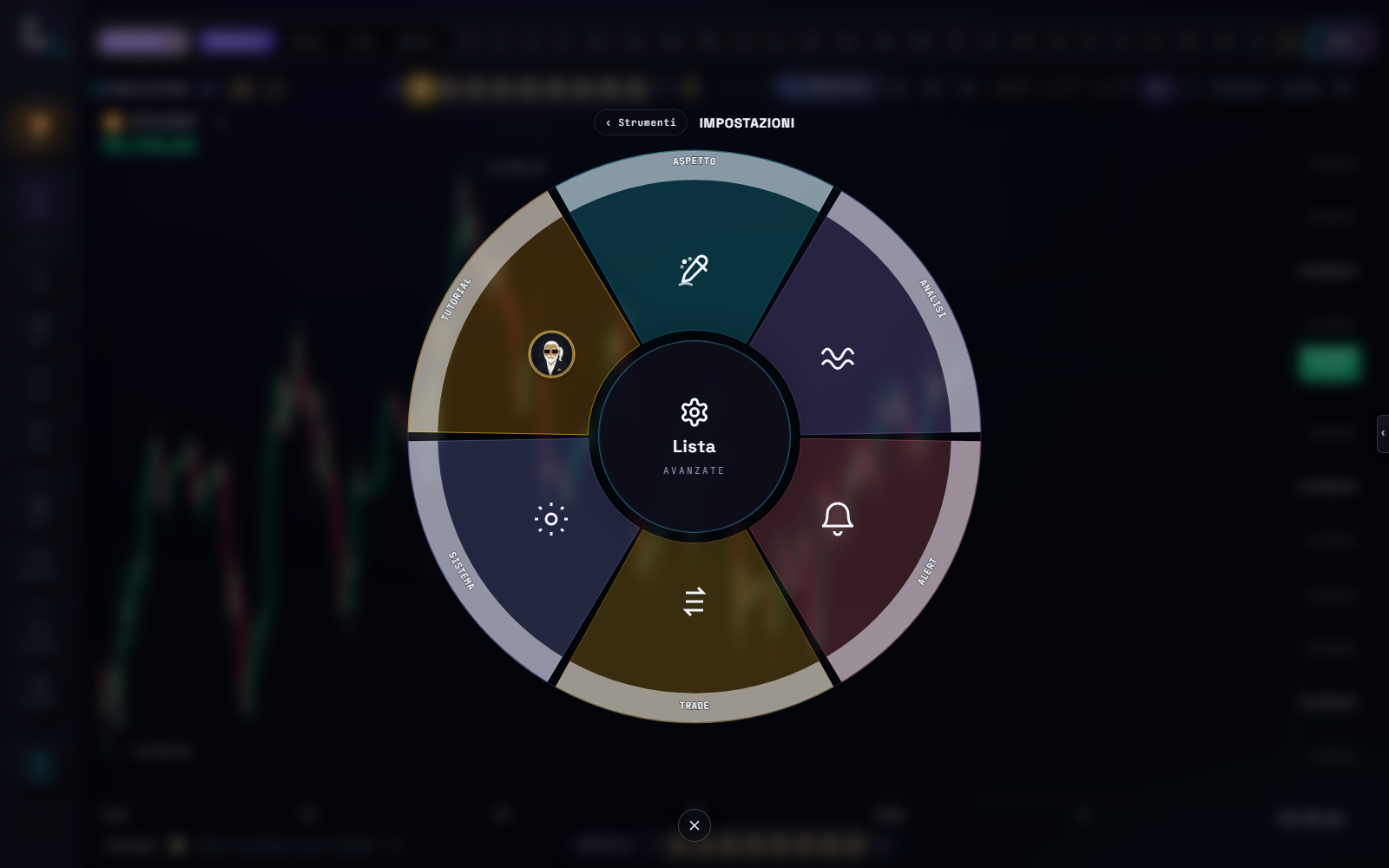
Change a setting
- Select Settings.
- Choose Appearance, Analysis, Alert, Trade, System or Tutorial.
- Change one control at a time.
- Inspect the preview or chart.
- Confirm or cancel with the displayed controls.
Appearance: Surfaces and Details
Appearance separates two tasks. Surfaces controls the look of interface panels. Details controls axes, cursor, precision, scale, themes and extra chart controls. A colour or width change affects representation, not market data.
Automatic precision
In Appearance → Details → Precision, Auto adapts decimal places to the market class. It is the recommended setting when switching, for example, from a cryptocurrency to a forex pair.
Choosing a fixed value from 0 to 8 applies that precision to every asset. If the source already sends a rounded price, more displayed decimals cannot recover missing information.
Chart scales
Depending on the surface, CycleSic can expose linear 1:1, percentage, indexed, logarithmic and inverted scales. Open the chart or axis settings, select the required mode, inspect changed visual distances and record the scale when sharing a screenshot.
A logarithmic scale changes the representation of proportional movements, not underlying prices. An inverted scale reverses visual orientation and must be disclosed.
Analysis, Alert, Trade and System
Analysis contains cyclic-surface and panel preferences; Alert covers available alert behaviour and delivery; Trade covers position-tool or operational display preferences. The chart Trade ON ($) overlay is the same perimeter: it shows positions from connected exchanges and does not execute orders. The name Trade does not imply brokerage.
System can contain timezone and language. A timezone change alters displayed time, not candle order. Tutorial provides the learning path, chapters and Gesture tutorial.
Extra controls: Nav/NOW and Focus
In Appearance → Details → Extra, NOW and FOCUS controls can be set to Always, On hover or Hidden.
NOWreturns the camera to the current candle; it does not start the data stream.- FOCUS changes panel framing; it does not recalculate the market.
If a command seems to disappear, check this preference first. On mobile, compact controls provide the corresponding access.
Use CycleSic on a smartphone
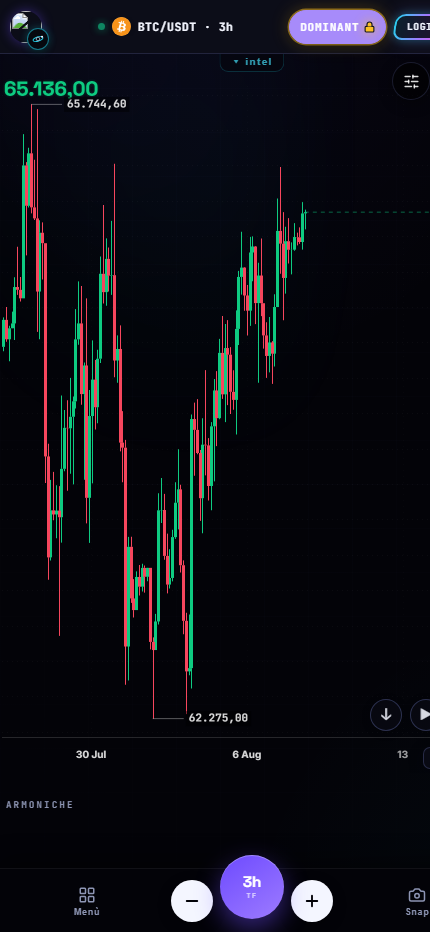
Use the header to confirm the asset, timeframe and mode. Use −, the timeframe pill and + to move through exposed intervals; open Menu for tools that do not fit in the bottom bar; and use Snap to capture the chart. Scroll to lower panels, select an object before dragging it, turn off the crosshair when instructed, and work with one drawing tool at a time.
The current tutorial includes a double tap on empty chart space to show or hide indicator panes when the crosshair is off. Run the in-app tutorial because gestures can evolve faster than this page.
On narrow screens (under 1025 px) the desktop right-hand column is off: commands stay in the compact bar and the circular hub. Do not look for the $ menu to the left of the rail on a phone.
If it fails
- Search by purpose rather than technical name if a setting is hard to find.
- Check scale mode, inversion and auto-fit if the chart looks distorted.
- Scroll, inspect the bottom bar and run the gesture tutorial if a mobile panel is missing.
- Undo, return to selection and zoom in if a drag changes the wrong object.
Sources
- CycleSic in the Emiciclo app — settings and responsive interface.
- Interface and views — overall structure.
- Cyclepedia technical check: verified on 2026-08-28 against circular Settings, Surfaces, Details, Automatic precision, Extra Nav/NOW and Focus, the Trade ON overlay, the mobile bar and gesture tutorial in
cyclesic-v2/.