

The CycleSic market catalogue selects a series already available through the terminal. Load local CSV uses data from your own file instead. These are different inputs: an online market can receive updates from its connected source, while a CSV is read from the device.
Essential idea — Before analysing, identify the exact market, source and timeframe. Similar tickers do not guarantee the same instrument.
Documentation boundary — The manual covers accepted formats, controls and visible outcomes. It does not expose reserved connectors, selection logic or proprietary engine components.
Find and open a market
- Open Asset in the side bar.
- Choose Crypto, Indices, Stocks, Commodities or Forex.
- Type a symbol or name in search.
- Select See all if the market is not among the short suggestions.
- Click or tap the correct row.
- Wait for symbol, candles and timeframe to align.
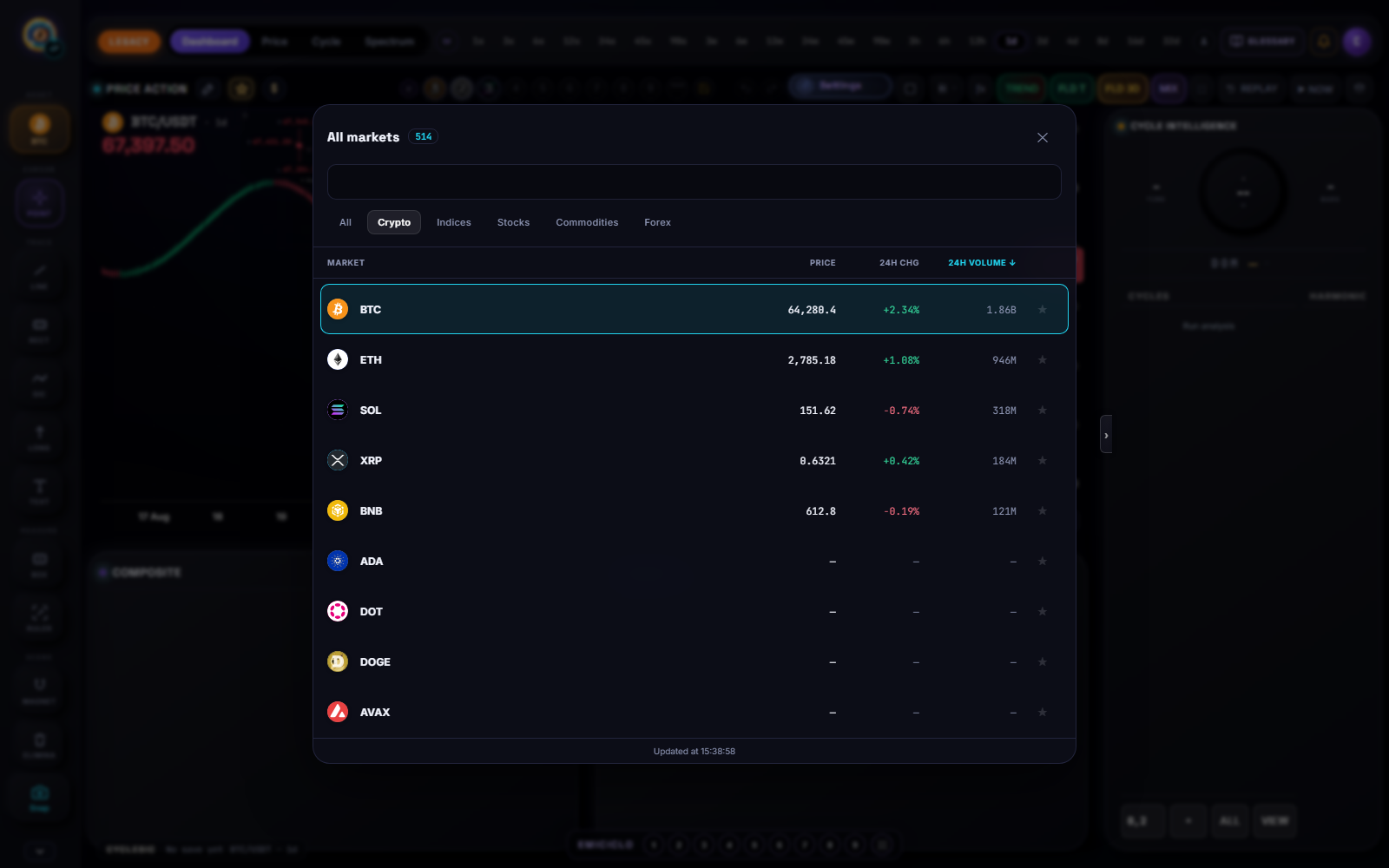
The short picker searches the available universe, not only its twelve visible tiles. See all opens a wider sheet with its own search and sorting controls.
Favourites and categories
The star adds or removes a market from a worklist. The star tab is a personal shortcut, not another asset class. The last category can reopen on the next visit; lists depend on the browser or session in use.
A filled star means “this market is in a list”. It does not mean the market is recommended, liquid or suitable for cyclic analysis.
Worklists (watchlist)
Open Watchlist from the right-hand column on desktop, or the equivalent command on a phone. Above the market rows you find:
- ALL — the full catalogue available in the terminal. A click cycles the class filter: all, crypto, indices, stocks, commodities, forex.
- the coloured dots — personal lists. The default purple dot is the Emiciclo list (Bitcoin, Ethereum, Gold). The active list name sits under the strip, not on the dot.
- + — creates a new list with a name and a colour.
The Emiciclo list can be renamed, filled, emptied or deleted like the others. If you delete it, it is not recreated on the next start. ALL cannot be renamed or deleted.
Check: if you only see three markets, you are on the Emiciclo list, not on ALL. Do not read that trio as the whole terminal universe.
Read the See all sheet
The sheet can show price, 24-hour change and 24-hour volume. Sort with the headings, but check what is missing:
- a dash is unavailable data;
- a very small change may be rounded to zero;
- sources do not necessarily provide the same columns;
- the price and 24-hour fields help navigation but do not replace chart history.
Selecting a row changes terminal context. Re-read the full symbol and let loading finish before interpreting indicators or cycles.
Load a local CSV
Open Asset, then select Load local CSV. The file must use commas and include a header row. close or price is required. Common time and OHLCV names are recognised.
A minimal example:
time,open,high,low,close,volume
2026-08-24T10:00:00Z,100,103,99,102,1250
2026-08-24T11:00:00Z,102,104,101,103,1180
To avoid silent mistakes:
- order rows from oldest to newest;
- use a dot as the decimal separator;
- do not replace commas with semicolons;
- remove descriptive rows above the header;
- check timezone and timestamp units;
- keep an untouched copy of the file.
After loading, CycleSic shows the file name as an editable reference and fits the working window to available rows. The expected result is a populated chart and a status confirming how many valid rows were read.
What changes in CSV mode
A file is a local snapshot, not a live market. While CSV mode is active:
- the real-time engine is suspended so external ticks cannot mix with your data;
- you must Remove CSV before choosing an online asset;
- layout save and autosave are suspended;
- indicators that require server-side data may be unavailable for the local file;
- the user must declare timeframe and timezone: the file name does not prove them.
Selecting Remove discards the local series from the terminal, clears the chart and allows online flow to restart after a new market selection.
Troubleshooting
- “Close column not found”: rename it to
closeorprice. - Empty or invalid CSV: check the header, comma separator and at least one numeric row.
- Implausible dates: use Unix seconds or milliseconds, or explicit dates with timezone.
- Flat candles: check that open, high and low are not missing or accidentally identical; when absent, CycleSic falls back to close.
- Layout cannot be saved: this is expected in CSV mode; remove the file first.
- Remote indicator is missing: the server does not automatically have your local file; use a compatible tool or an equivalent online series.
Sources
- CycleSic in the Emiciclo app — Asset picker, catalogue and CSV input.
- First launch, asset, timeframe and data — checks before analysis.
- Cyclepedia technical check: verified on 2026-08-28 against catalogue, worklists (ALL and the Emiciclo list), search, full market sheet, CSV parser and suspension states in
cyclesic-v2/.