

A read-only credential lets Ufficio read authorised data without placing orders or requesting withdrawals. Field names and requirements differ by provider.
Goal — See the provider listed as connected in Settings without granting trading or transfer permissions.
Security rule — Never paste API Key, Secret or Passphrase into Cyclepedia, Nicola, chats, Diary notes or support screenshots. Stop if the provider does not let you disable trading and withdrawals.
Before opening the modal
Sign in, open Settings → Exchange & API, then select Connect exchange. Use only providers enabled in the current UI. Coming Soon entries cannot be connected even when their name is already visible.
Some integrations request a UID, account or referral check before credentials. Others use a public wallet or a different broker flow. Follow the fields shown for that provider instead of copying instructions from another integration.
Complete the connection
- Select the correct provider in the horizontal selector.
- If a UID or licence step appears, enter only the requested identifier and wait for the displayed state: verification, review, trial, rejection and expiry are different states.
- Create a read-only credential at the provider.
- Enter API Key and API Secret. When Passphrase appears, that third field is required too.
- Confirm at the provider that trading, transfers and withdrawals are disabled.
- Tick the Read-Only confirmation and select Save and Connect.
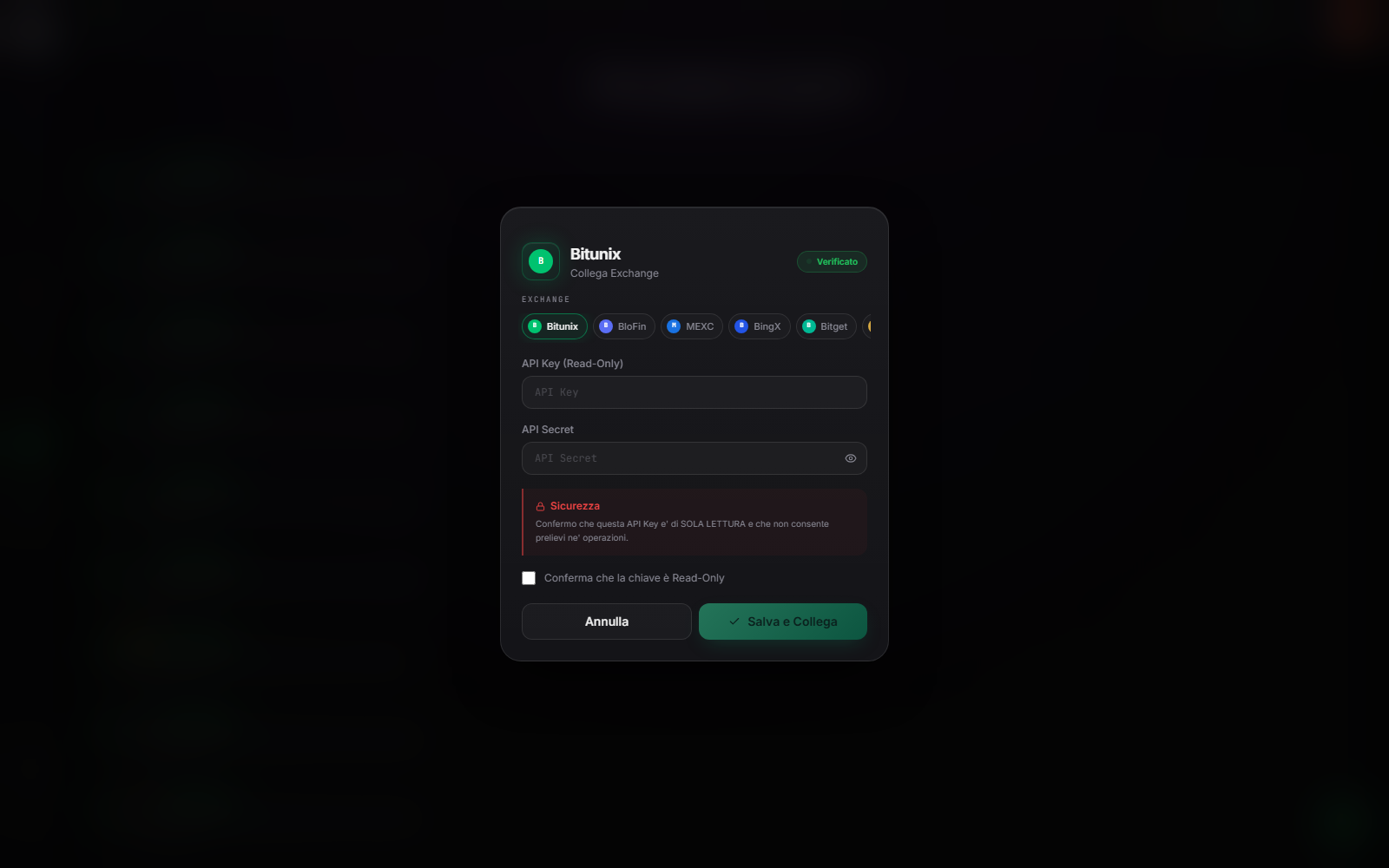
The server validates a credential before saving it. A key with operating permissions should be rejected; do not broaden permissions to bypass an error.
Observable result
The connection is complete when the provider appears among connected providers. This confirms that the credential was registered, not that every trade has already been imported. Next, synchronise and reconcile a sample.
If the modal does not proceed
Check provider, UID/licence state, account type, Passphrase, copied spaces, expiry and IP restrictions. Never send the Secret to support. Report provider, time, step and error message with all sensitive data obscured.
Sources
- Ufficio Settings — authenticated provider and API route.
- Common Ufficio problems — licence, credential and import diagnosis.
- Cyclepedia technical verification: check on 2026-08-25 of the current modal, licence states, Key/Secret/Passphrase fields, read-only confirmation and distinction between connection and sync.