

Each Cyclic Board tab can retain its own asset, view and Nominal or Dynamic mode. This lets you compare two markets without repeatedly replacing the current context.
Goal — Open two distinct contexts and compare them only after checking mode and timestamp in both tabs.
Documentation boundary — This procedure documents visible URL and interface controls. It does not explain how the product builds its analysis.
Open a second asset
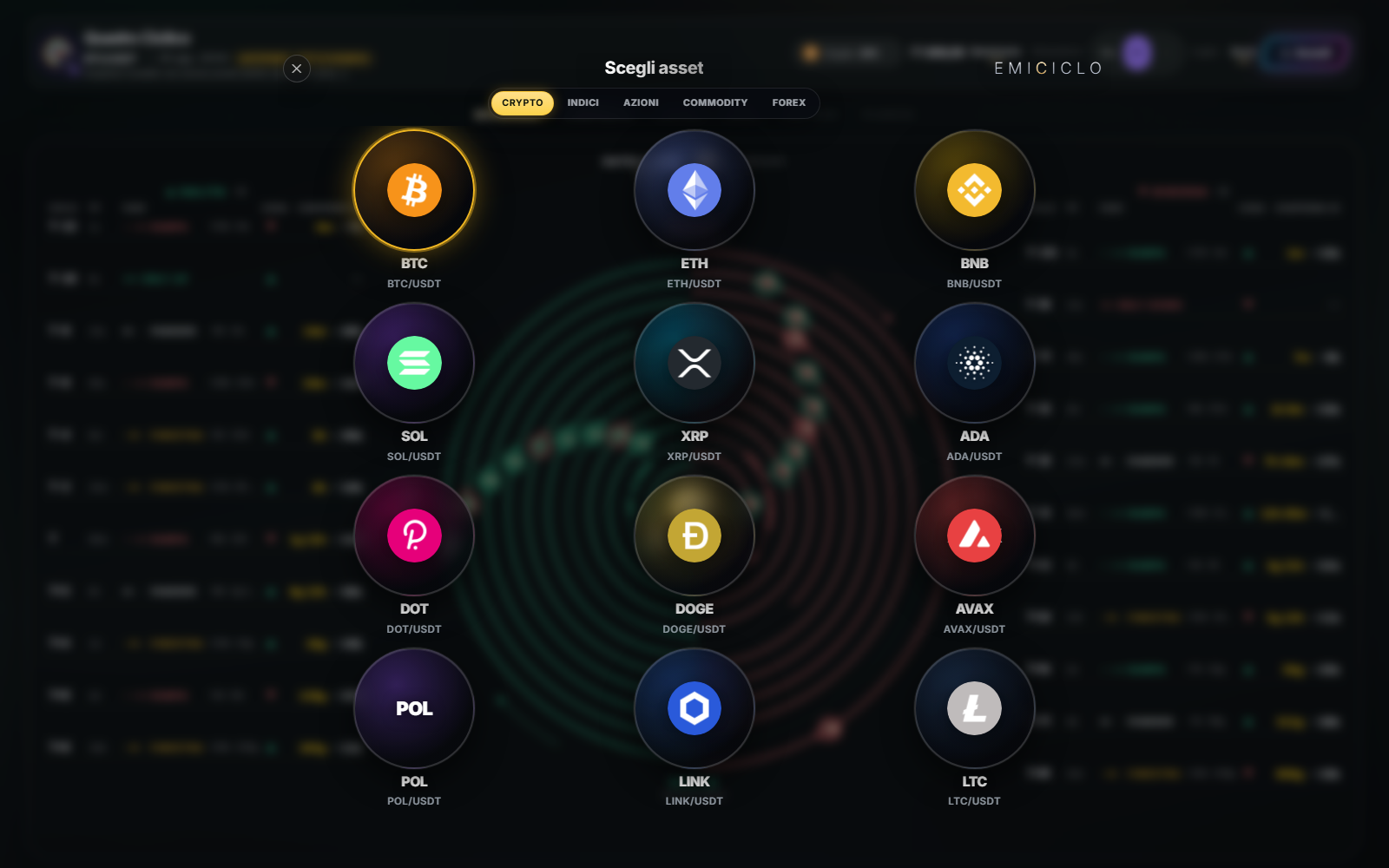
Open the asset selector. A normal click replaces the market in the current tab. On desktop, use the separate-tab control shown on the asset, or Ctrl/Cmd + click where the browser supports it. The original tab remains on the previous market.
The address retains the essential context parameters. Copying the URL can reopen the same symbol, view and mode; it never preserves data freshness.
Make a valid comparison
Check five items in both tabs: correct symbol, same view when comparing shape, same analysis mode, compatible timestamps and completed loading with sufficient timeframe coverage. If one differs, record that difference rather than attributing it automatically to the market.
Multiple tabs generate multiple updates. Avoid opening dozens of markets: the browser may suspend background tabs and services may slow or limit requests. Check the timestamp again whenever you return to a tab.
On a phone, the selector changes the current asset; separate-window support depends on the browser or installed app. Do not expect a long press to expose a command that the interface does not show.
Sources
- Cyclic Board in the Emiciclo app — selector and context parameters.
- First launch and asset selection — single-market checks.
- Cyclepedia technical verification: asset replacement, separate opening, URL persistence and tab refresh checked on 2026-08-26 against the current runtime.