

A CycleSic layout is a saved workspace. A tab is the container where you open it. You can therefore keep BTC in one tab and ETH in another without turning both charts into the same piece of work.
Essential idea — A layout keeps content; a tab keeps navigation context. A snapshot is only an image.
Documentation boundary — This chapter covers the visible behaviour of tabs and layouts. It does not expose synchronisation, identifiers or internal session mechanisms.
Prepare and save a layout
- Set asset, timeframe and view.
- Add only the indicators and drawings you need.
- Select a free slot in the layout strip.
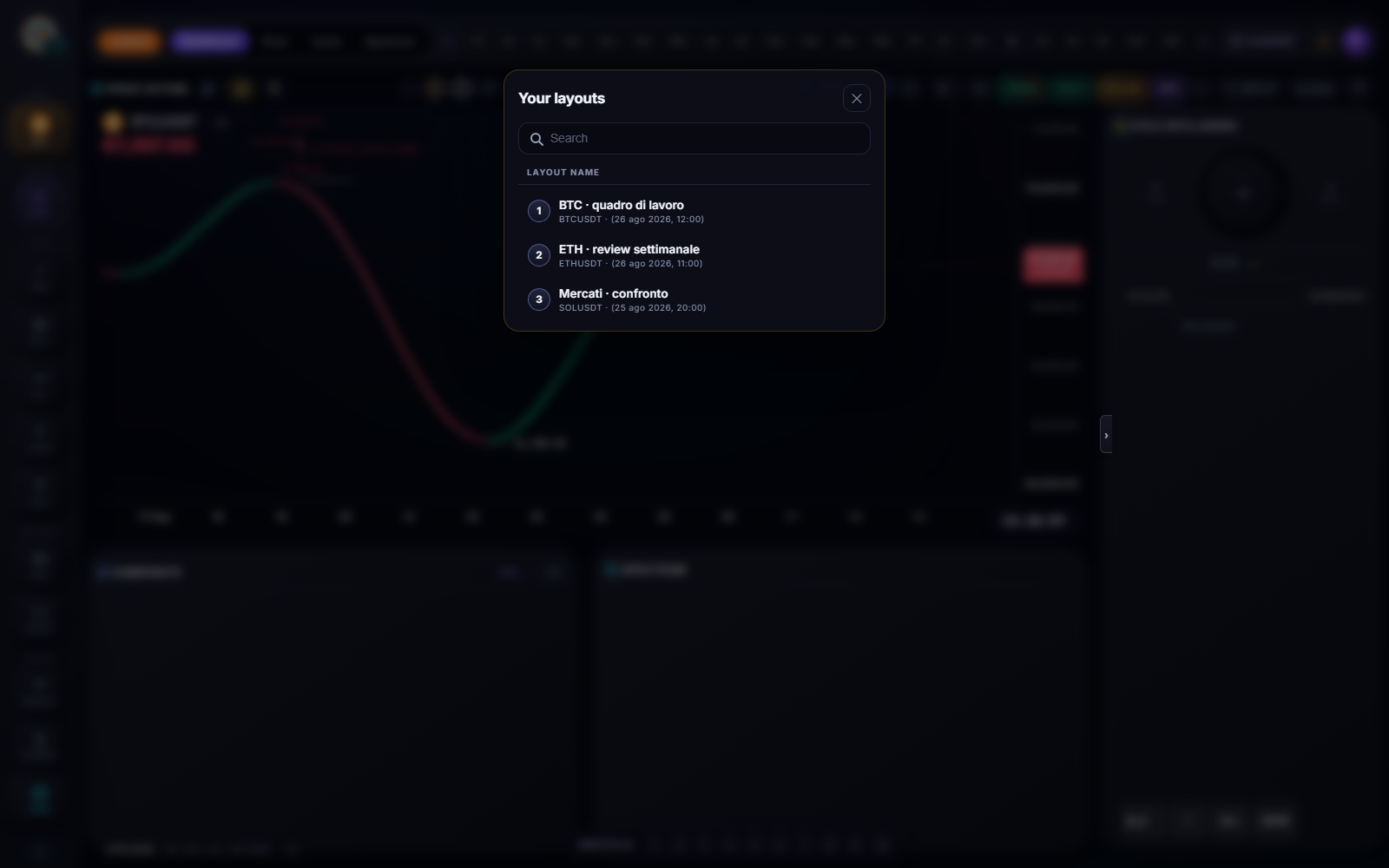
- Give it a task-based name such as “BTC · weekly review”.
- Use Save and wait for confirmation.
- Reopen the list and verify name, slot and symbol.
The saved workspace can include more than the canvas: configuration, tools, panels and supported preferences. Exact viewport position can remain device-specific so a phone does not impose its zoom on a desktop.
Open in the current space
Clicking a slot applies that layout to the current tab. Save the outgoing work first if you need to keep its changes.
Expected result: CycleSic shows a short curtain, loads the layout market and exposes the new scene only when ready. With a slow source, wait before deciding that the layout is empty.
Open in a new tab or window
On desktop, open the contextual menu for a slot or layout. When available, choose:
- Open in new tab to keep the current work and prepare another app space;
- Open in new window to hand the workspace to the browser or a separate window.
The new tab should open the requested layout, not a clone of the chart you left. Still verify layout name, asset and timeframe after loading.
PWA and Windows app strip
In the desktop PWA and Windows app, the top strip can hold several Emiciclo tabs. Drag horizontally to reorder them. In supported shells, dragging a tab away from the strip can detach it into another window.
The + at the top-right of the strip opens a menu: Open Cosmo (app picker in the same tab) or a personal layout. It does not open an empty CycleSic. Ctrl+T, where available, still opens CycleSic.
Phones do not expose this host-level tab management: they keep one visible space and switch layouts through compact controls. In a normal browser, the action may become a standard browser tab. The strip + is not present when CycleSic runs standalone on a development port.
Personal layouts and the Emiciclo showcase
Personal layouts belong to your workspace. The Emiciclo showcase contains official configurations with different access and editing rules. A showcase layout can be read-only: a lock is an access state, not a chart error.
Viewing an official layout does not reveal or grant permission to reconstruct reserved formulas or settings. This manual documents controls and observable results only.
When saving is suspended
CycleSic can pause save and autosave during CSV, replay, another layout application or read-only mode. Do not press Save repeatedly. End the blocking mode, return to a personal layout, verify asset and timeframe, then save once and wait for confirmation.
New tabs and session state
Opening another layout should not sign out the tab you came from. If one tab suddenly appears as a guest, wait for startup and check the profile. If it persists, close the incomplete tab, reopen the app and keep a screenshot of the message. Do not create more duplicates until the session is stable.
Signing out or switching account should clear the host tab strip so charts from the previous profile are not shown.
Layout or snapshot?
Use a layout to continue working. Use a snapshot as visual evidence in a note, journal or review. An image does not retain hidden parameters; a layout does not prove when a condition was observed.
Troubleshooting
- Tab opens the wrong market: let it land, then close it and use the command on the intended layout.
- Chart appears bare: check guest state, read-only mode and indicator loading.
- Menu leaves the screen: close and reopen it from the slot; avoid extreme browser zoom.
- Layout will not save: exit CSV or replay and check workspace permission.
- Tabs look identical: compare layout names, not only symbols; two workspaces can use the same market for different tasks.
Sources
- CycleSic in the Emiciclo app — strip, slots and layout manager.
- Save layouts and create snapshots — saving and export procedure.
- Cyclepedia technical check: verified on 2026-08-28 against per-tab isolation, Cosmo/
+layout menu, new tab/window opening, PWA/Windows strip, loading curtain and save blocks incyclesic-v2/and the Emiciclo shell.